

Remote Configure Service
Price range: US$1 through US$100
Get a problem with your 4G router? Do not worry, we got your back! Apply for the remote configure service now and get the instant online service.
We strive to provide timely and convenient technical support to all customers. Do not hesitate to contact us when you need technical assistance.
The cellular router’s firmware is Linux-based. Since it opens the highest root privilege, some misconfiguration could cause glitches. Don’t worry, we are here to help!
General Supports
◦ The common subjects are included in the user’s manual and Knowledge-base.
◦ You can reboot the router to fix minor glitches caused by cache or memory.
◦ If it works well before changing, you can reset the router to restore default settings.
E-mail Supports
You can always contact us for technical support. Please clearly describe the details of the issue, and attach a screenshot of the network interface status and router’s system log for debugging.
Network Interface: Take a screenshot of the overview page under “Network > Interface.”
System Log: Copy or save the txt/pdf file of “Status > System Log.”

Remote Supports
You can apply for remote support for rare cases where the above general and e-mail support cannot fix. It’s necessary to have the authorization to control your computer or router to run network analysis and configure the router remotely.
➭ If the SIM card router has an internet connection, please choose the options of EzenCloud or Traversal-Cloud.
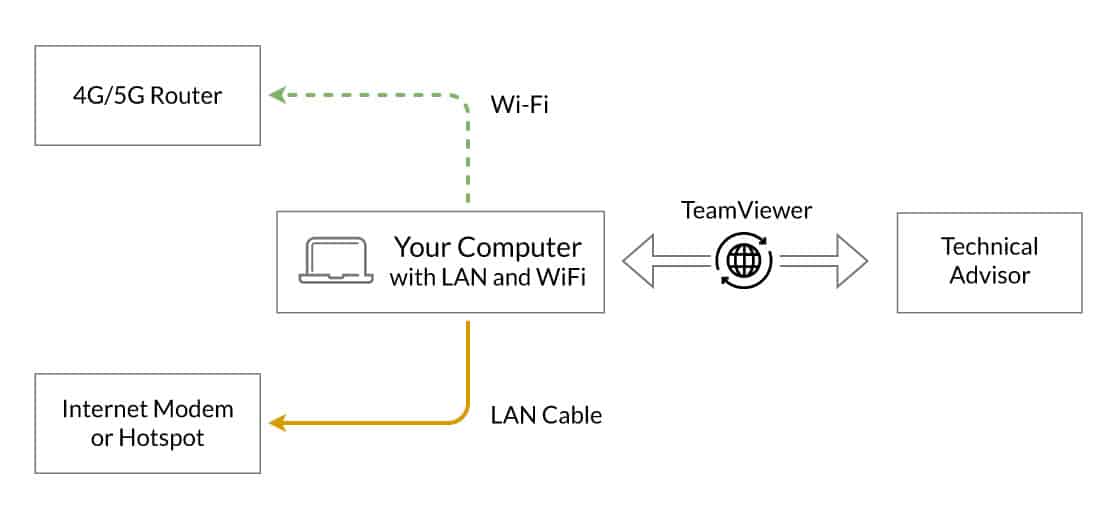
➭ Using the TeamViewer option will require remote access and control of your computer during the session. Your computer should have two workable connections to the internet and the cellular router. For example, Wi-Fi to the internet, and Ethernet to the cellular router.
Introduction
EzenCloud is our next-generation remote access cloud platform. It utilizes an upgraded NAT tunnel to offer comprehensive monitoring, tracing, and remote management capabilities. Click the link to find information about the EzenCloud platform.
After you register on the EzenCloud dashboard and bind your router to your cloud account, you can add our support team as a trusted user. This will allow us to monitor and configure your router remotely.

Request Assistance
Please review the trust management guidelines. Use the information below to add our support team as a trusted user on your router. We will both receive email notifications once you add a new trust.
User Email: [email protected]
Expiration Date: Set a date to revoke the trust authority.
Notes: Describe the issue and add your requirements here.
Introduction
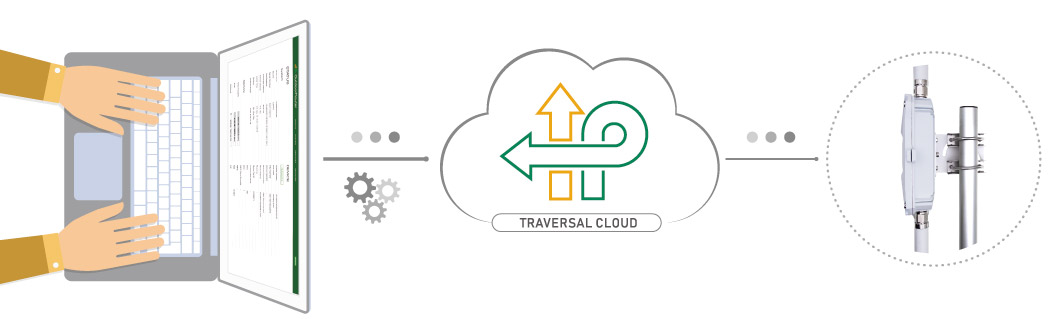
Traversal Cloud uses a secure NAT tunnel to enable remote control of cellular routers. It is available on all our routers and is turned off by default. Through the Traversal-Cloud, we can remotely access your router and change its configuration.
Note: It won’t access any other equipment linked to the cellular router.
Preparation
The cellular router should maintain a stable internet connection via the mobile modem, the physical WAN port, or Wi-Fi relay.
◦ Mobile: You can find the Mobile connection status on the front page or interface overview page under “Network > Interfaces.”
or WAN Port: Connect internet modem to the WAN port. For the outdoor router series, open the enclosure and will find the WAN port nearby the PoE/LAN port.
or Wi-Fi Relay: Go to “Network > Wireless,” click “Scan,” and connect to existing Wi-Fi hotspots. Check each router’s online manual for step-by-step tutorials.
Turn on Traversal-Cloud
After logging into the 4G router:
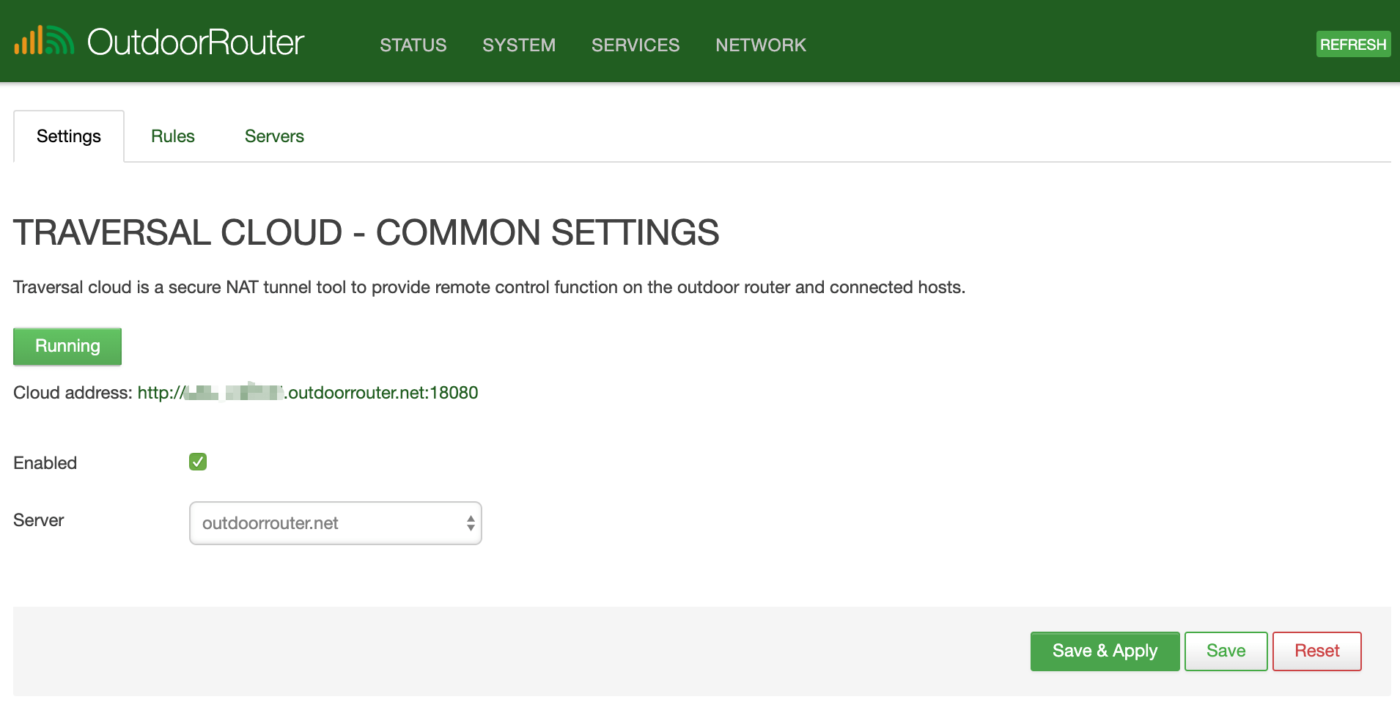
- Go to “Services > Traversal Cloud.”
- Tap the checkbox of “Enable.”
- Click the button “Save & Apply” on the bottom right corner.
Send us the “Cloud Address” and your router’s password. We will keep you posted on the operation progress. It usually takes 1~2 days except on the weekends.
Note:
1) Recommended to set up a strong router password (System / Administration) when the traversal cloud is enabled.
2) Do not disconnect the internet connection after applying for remote assistance.
Introduction
Your computer should have two concurrent connections to simulate a local connection to the 4G router and keep active on TeamViewer.
The remote TeamViewer connection does not support Mobile phones and tablets.
Preparation
Please use a computer with both Wi-Fi and LAN/Etherent connections.
You can jump this part if the 4G/5G router has a stable internet connection, such as mobile internet, physical WAN link, or wireless Wi-Fi relay.
Connect LAN to a stable internet modem, and connect Wi-Fi to the 4G/5G router, as the right-side image shows.
If no internet links are available on the LAN/Ethernet connection, please use Wi-Fi to connect to the internet, such as Mobile Hotspot. Please note that do not connect LAN to the 4G/5G router before connecting on TeamViewer unless you already set the computer’s internet priority to Wi-Fi instead of Etherent.
Appointment Schedule
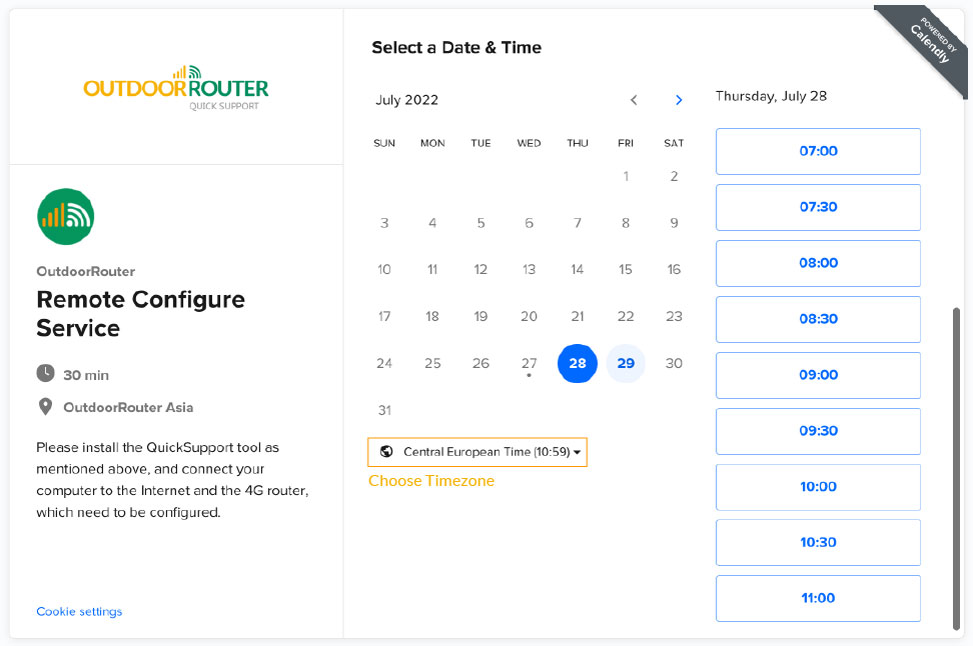
You can pick up a time by visit the RCS Online Calendar. It will add an event to our calendar, and our technical advisor will wait for you as scheduled.
Please pay attention to the time zone. Make sure it fits your location.
Start Remote Connection
Please download and install remote control software on your computer to enable the online remote connection. We suggest using our QuickSupport tool. You can also use the main program of TeamViewer.
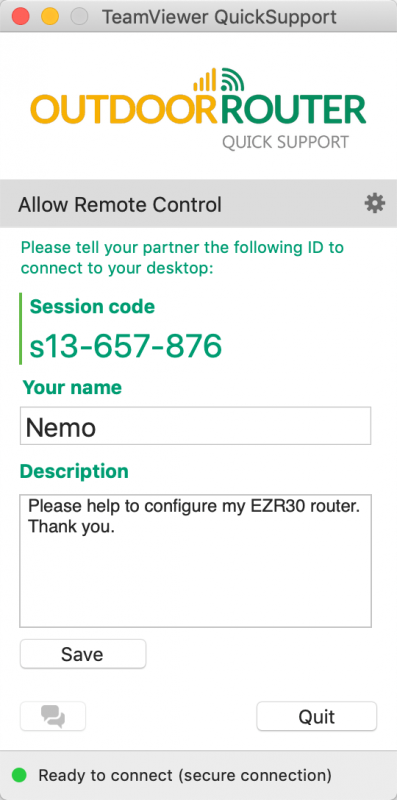
When using the QuickSupport tool, please submit a session as per schedule, as the right-side image shows. We will request a remote connection after receiving your session on schedule. If you use TeamViewer, please e-mail us the ID and password.
Remark: If unable to submit a session, please check the computer’s internet connection.
Note:
1) Please do not submit a connection session without a schedule.
2) Each appointment lasts for 45 minutes. Please make complete preparation before starting the remote connection.
3) Most of the jobs can be done on a web browser. Your files and computer settings won’t be touched. Please close and save personal files before the remote connection.
Be the first to review “Remote Configure Service”
You must be logged in to post a review.
Reviews
There are no reviews yet.