
Sep
Firmware Guidance, Technical Benefits
Read and Send SMS Message on 4G 5G SIM Router
Don’t miss messages from carriers and friends!
Except for the legacy SSH terminal, you can now use a user-friendly web dashboard to read and send SMS messages on our 4G/5G routers. It helps you check the SIM card status, monitor remaining data usage, and not miss important messages.
The SMS dashboard is included in firmware version EVxx63 and above. If you are using a legacy version, please upgrade the firmware version. Then, review the guide below to explore the full potential of SMS services on our SIM card routers.
SMS Message Dashboard
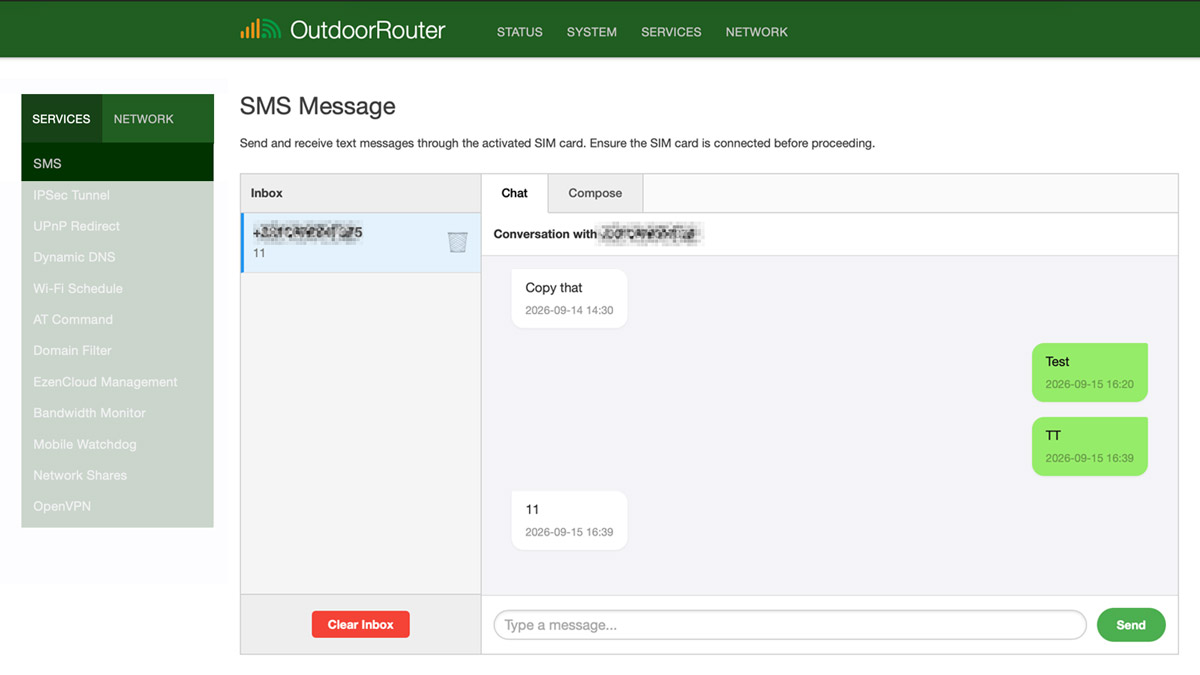
Access the router admin panel and navigate to the top menu bar, then select “Services > SMS”.
Select a message from the “Inbox” list; the conversation thread appears on the right under the “Chat” tab.
Compose A Message
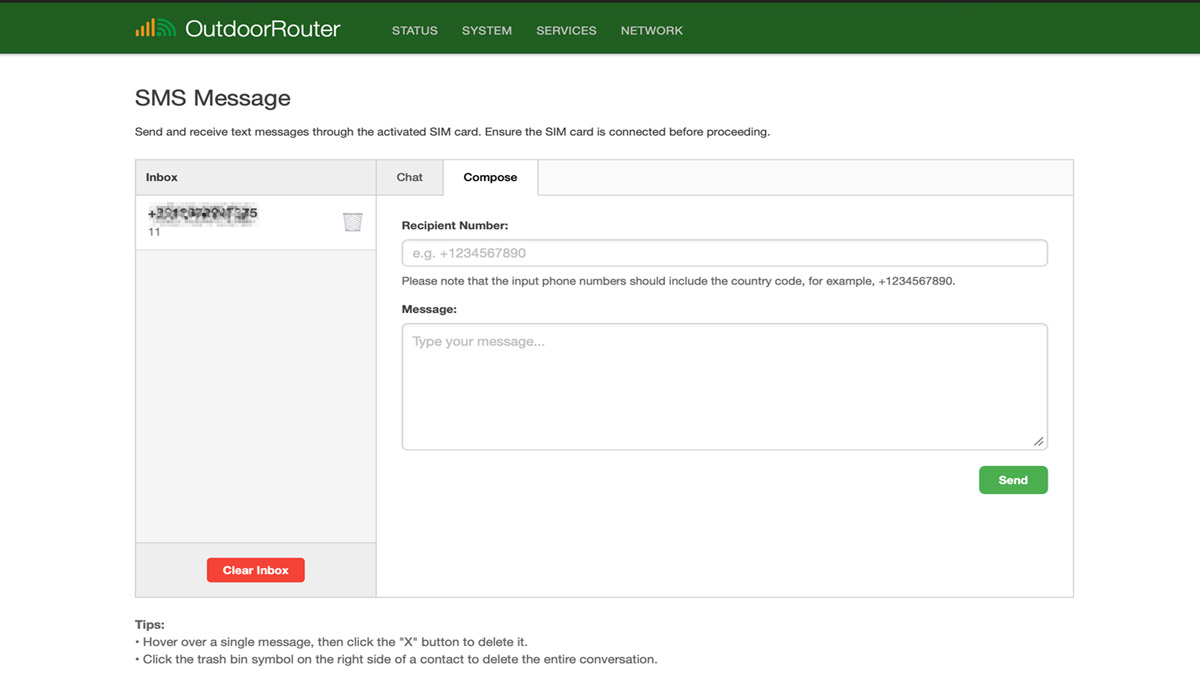
Click on the “Compose” tab. Enter the recipient’s phone number in the designated field.
Type your message in the Message field, then click the Send button.
Remarks:
- Cellular Network: SMS messages are sent through cellular networks on the activated SIM card. Ensure the target SIM card is connected to cellular networks before proceeding.
- Sync Interval: The router automatically synchronizes incoming SMS messages every 30 seconds.
- Caller ID Format: The SMS dashboard displays the sender’s phone number based on the data provided by the cellular carrier. Occasionally, the carrier may omit the country code. This is normal and does not affect SMS services.
- A data-only SIM card usually does not support SMS messages, even if it has a regular phone number.
For advanced setup, you can use the AT, UQMI, and MMCLI command sets to access SMS services. Select the appropriate command set based on the mobile protocol activated on your mobile modem. How to access the SSH terminal?
MMCLI SMS Commands
The mmcli command set works when the mobile modem is using the default “MobileData” protocol. Below are the commonly used mmcli commands to send and receive SMS messages.
| MMCLI Commands & Examples | Functions | ||
Command
mmcli -L Return Value /org/freedesktop/ModemManager1/Modem/0 |
Check the mobile modem’s sequence number. The last decimal number in the return value is the sequence number. For example, the modem sequence number of the instance on the left side is 0. |
||
mmcli -m 0 --messaging-list-sms |
List SMS messages. Use the latest modem sequence number behind -m. You can also use “mmcli -m -any” to jump the sequence number. |
||
mmcli -s 12 |
Show the specific SMS message. | ||
mmcli -m 0 --messaging-create-sms="text='Hello',number='+123456'" |
Create an SMS message and specify the number to send it to. It will return a value with the SMS serial number. For example, if the return value is “/org/freedesktop/ModemManager1/SMS/24”. The created SMS serial number is 24. |
||
mmcli -s 24 --send |
Execute this command to send out the latest created SMS message. | ||
UQMI SMS Commands
For legacy firmware using the QMI protocol, you can use the UQMI commands below to access and control the SMS gateway, and we strongly suggest upgrading the router firmware.
| UQMI Commands | Functions | |
--list-messages: |
List SMS messages | |
--get-message <id>: |
Get SMS raw message contents at index <id> | |
--send-message <data>: |
Send SMS message (use options below) | |
--send-message-smsc <nr>: |
SMSC number (required) | |
--send-message-target <nr>: |
Destination number (required) | |
--send-message-flash: |
Send as Flash SMS | |
The virtual modem interface for QMI protocol is “/cdc-wdm0“. The command always starts with “uqmi -d /dev/cdc-wdm0“.
i. List the received SMS messages on SSH terminal:
uqmi -d /dev/cdc-wdm0 --list-messages
ii. Read one of the messages. For example, read the No.2 message.
uqmi -d /dev/cdc-wdm0 --get-message 2
iii. When sending an SMS message, we need to attach the target phone number. Below is an example of sending a message of “Testing” to target mobile phone number “2001111“. Make sure without country code, space, and symbols on the phone number.
uqmi -d /dev/cdc-wdm0 --send-message Testing --send-message-target 2001111
We continually upgrade the 4G/5G SIM card router to add more features and expand its usability. If you have any suggestions, please feel free to contact us.
I need to access the SMS on my outdoor Router, when entering above information on the terminal, I recieve the following response, can you advise please
error: couldn’t find the ModemManager process in the bus
Your email address does not work. Please get in touch with us and send the screenshot of the admin front page. I suppose you are using a legacy version of firmware that uses the QMI command set. In this case, please upgrade the firmware to the latest version, EV3133, and do not keep the previous settings to avoid conflicts.
It’s possible to send a USSD code?
Yes, you can operate on the SSH terminal as the phone SMS interface.
On the phone I just call the *#123# to know the data. I don’t know how to do it via the terminal. It’s not a SMS option, it should be a call.
I tried
mmcli -m 0 –call-start *#123#
but did not worked.
Neither
mmcli -m 0 –messaging-create-sms=”text=”,number=’*#123#'”
It seems your command format is incorrect. We send you instructions by email.
Thanks but you send me about SMS option, USSD code it’s not via SMS but via call.
I need to regularly send and receive SMS messages to activate more data. I have an EZR33 if i log into the shell and type uqmi -d /dev/cdc-wdm0 — list-messages the command does not return, if i then cancel with ctrl c it will respond “Failed to connect to service”
If you use a later firmware than EV3114, please use the MMCLI command set to send and receive the SMS messages. We have upgraded the tutorial to include the operation guidance.